

Last December, I made a post about how I often use my iPhone as a sketchpad for ideas, often sharing them to Instagram. I usually encounter two main issues when developing something on my phone. The first being many apps on my phone don’t have corresponding desktop equivalents where I can attempt to reproduce the results with an image made from a higher quality camera. The second, I may come up with something I really, really like. However, if I ever wanted to print it big, perhaps output something on canvas, or even offer it for sale – it is nearly impossible to judge print output quality on your phone. For as amazing as phone screens are, no matter how good images look on them – printing to physical media (larger than snapshot size) is another level.
As I have a number of years under my belt in printing fine art photographs, I can make some judgments about expected print quality in viewing a file on a desktop monitor at 50% enlargement. The key question is: How do I get from something that looks good on my phone to something that might look good on a wall?
Mobile photo editing applications are often making adjustments to a JPEG file stored on your phone. With each adjustment and resaving of a JPEG file, you begin to lose a lot of image quality. You may be able to make some great prints from untouched photographs straight from your phone’s camera. However, once you start bringing it into some other apps to play around with it, you are likely to see some degradation depending on how many apps you move between. It helps to be aware of each app’s settings. Some of them only output certain resolutions and it isn’t always obvious.
Mobile photography apps can be great playgrounds

I have a very recent example of this. I found myself back in the hospital this past weekend due to some ongoing complications I am having. In between visits from doctors and nurses taking vitals, I found myself finding some comfort in the view out the window of my room. I have often shared articles on the healing aspects of nature and I was right there taking advantage of it to treat myself.
My 5th-floor room overlooked a large pond with some resident wading egrets and herons and a small woodland. When I was feeling well enough, I sat by this window watching them going about their day and occasionally had an itch to make some photographs. Everything was much too far away to make any attempt at capturing such a scene on a phone. So instead I wandered into the abstract realm to see what I could do with the elements in other ways.
I have a slow-shutter app on my iPhone that allows you to force your shutter speed into many seconds. This results in an obviously very blurry image. That’s OK for now. Fine details are irrelevant at this point because they are too far away to have any meaningful contribution. So I created an initial blurry landscape of the scene from my window. I thought the resulting image was “OK” – but unfinished. It was more like the initial layering of background paint on a canvas.
I brought this blurred image into a couple of other apps, playing around with settings, tweaking here, nudging there. Essentially just playing around as one would in a sketchbook with no particular goal in sight. After all, I really had no place to be at the time. Ultimately I ended up with a rather impressionistic interpretation of the view from my window. “I like where this is going – save it” I said to myself. I wasn’t really thinking about how many apps I was using to open and resave it at the time. It still looked pretty good on my phone.
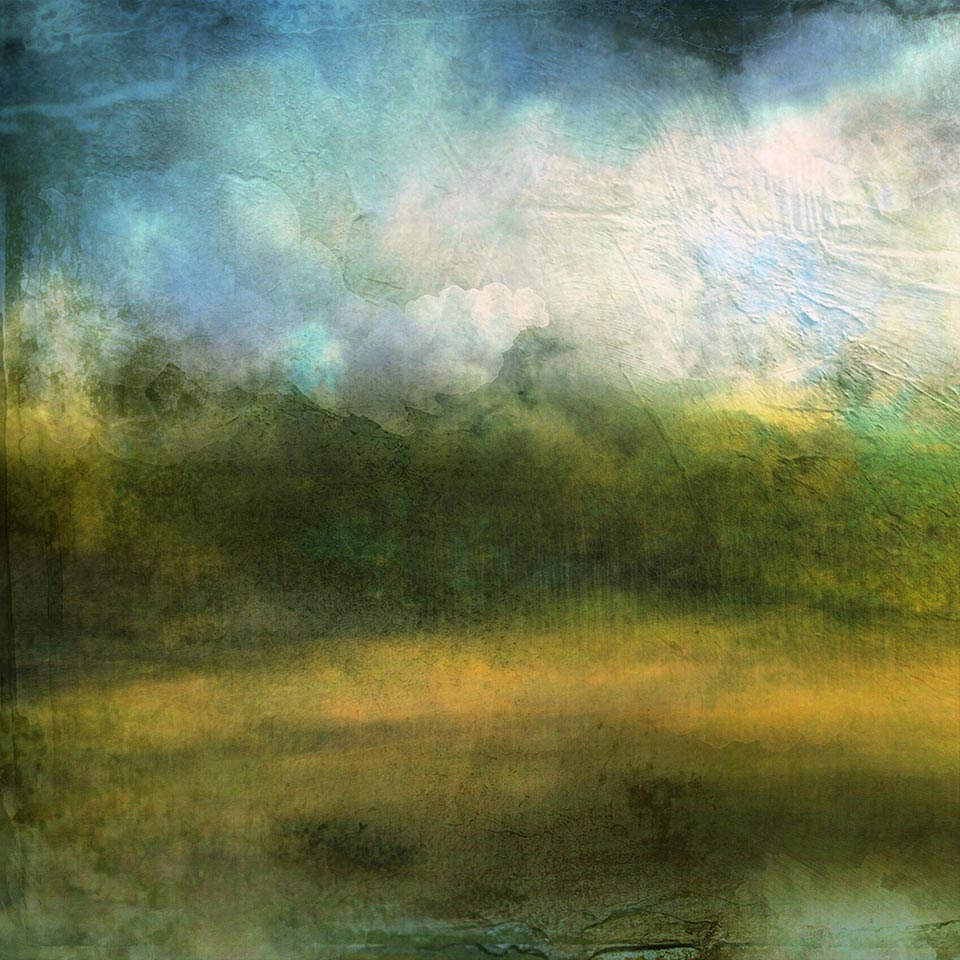

When I was released and got home, I emailed the image to myself to view it on my desktop computer. I thought it might actually make for something worth trying to make a print from someday. As soon as I pulled it up in Photoshop on my computer, my heart sank. I had something where I liked the result but was just too soft and degraded to do anything with it beyond viewing on my phone. Although my iPhone X camera has a 12 MP camera, somewhere in my developing I ended up with only a 1698 x 1698 pixel image.
Topaz Gigapixel AI
I am a rather new user to Topaz Gigapixel AI, purchasing it last December. I haven’t had the opportunity or need to use it much since. I wrote previously about some of the amazing things Topaz Sharpen AI can do in bringing out more details. My normal go-to software for making enlargements and interpolations is an old version of Perfect Resize from ON1 (originally Genuine Fractals). It does a great job of extrapolating and maintaining detail as long as you have some pretty good detail to start with. That wasn’t the case with this image – I buggered it up pretty good. I tried upsizing using Perfect Resize, and while it didn’t degrade the image much, it didn’t help much either. A lot of detail was still missing.
As it turns out, I recently used Gigapixel AI to upsize a different high-rez landscape photograph for use in a large backlit display at a cancer center in Illinois at 61″x41″ (1.55m x 1.04m). It worked really well on the fine details (despite taking nearly 20 minutes to enlarge on my ancient computer). However, as Sean Bagshaw noted in a previous video he did, Gigapixel AI can have a tendency to create some strange artifacts in clear sky areas. I saw the same thing. So I implemented his two-part solution of using 2 different enlargement methods, using the best results from each using masking. Yes, this is some extra work, but the quality Gigapixel AI brought to the detailed areas of the image made it worth it.
Gigapixel AI does wonders for adding detail
So… now I wondered if Gigapixel AI might help my situation with my rather disappointing iPhone “raster painting.” I kept the default settings and set a target to for a 4X upsize of the 1698×1698 pixel image, resulting in a 6792×6792 image. That is an image size I could do something with as far as decent size prints (or more appropriate to the image in canvas) if I ever wanted to. Well, I was quite amazed at the result.
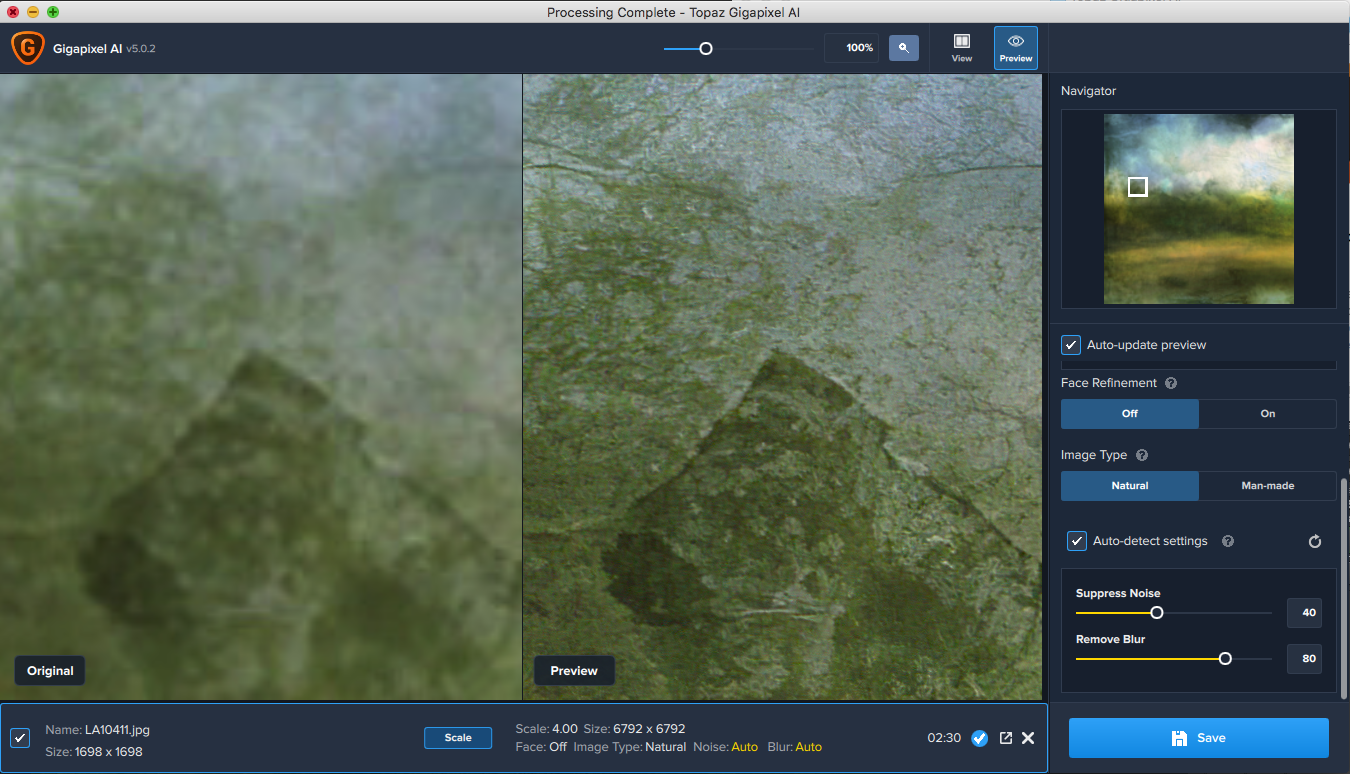
You can clearly see whatever AI magic is going on in this software, it did a pretty amazing job at restoring details. Some of the paint texture I implemented is more dimensional and tactile. Edges, textures, and shapes are more refined. I didn’t see any objectionable artifacts, probably because there is a texture applied throughout the image. Instantly, my hopes changed from that initial heavy sigh and disappointment to excitement! This is something that now has potential!
I saved this result as a TIF file to avoid any further degradation of the image quality. As someone who always wonders “how far can I go” until it is obvious I’ve gone too far, I brought the image into Photoshop. I wanted to see what further clarity I could bring to this little phone “painting” of mine. Maybe there was still a bit more I could do.
In Photoshop, I ran another Topaz product, Sharpen AI. This added a bit more sharpness to the details brought forward by Gigapixel. It helped again. With some final small touches from Tony Kuyper’s Luminosity Masks and a splash of a basic Luminar 4 preset, I found a good stopping point. I brought this experiment that originated from my phone, looking out a window of a hospital room to a piece of art that I may consider one day hanging on my wall. I could even offer it up as health care art, created in a health care situation, in a health care facility. 🙂

Topaz Gigapixel AI Benefits / Considerations
| Plus | Minus |
|---|---|
| Simply amazing restoration and retention of detail | Can be SLOW on high-rez images – but worth the wait (keep in mind I have a 12 yr old computer) |
| Easy to use – not a lot of complicated settings | Does not operate as a plugin, separate application from Photoshop |
| Does very well with low-resolution originals or phone developed work | Can produce artifacts in clear sky areas – creating some extra work to mask out (learning curve?) |
| 4/5 stars in 1,047+ reviews on Topaz Website | May be viewed as pricey for just occasional use (see discount code to help) |
Disclosure: I do have an affiliate relationship with Topaz Labs, but purchased Gigapixel AI for myself as I do sell big prints and upsize files for client installations. If I didn’t see value to others, I wouldn’t recommend it.
The software in mobile apps and for the desktop darkroom are doing some amazing things for how we work, play, create, and explore what we can do with our photographs. They allow us to explore new possibilities and ideas whenever and wherever the inspiration hits us. Sometimes they can work in concert in creating a possible bridge from the tiny virtual world of mobile to potentially wall-filling, gallery-quality physical art. I know this experience in creating this image will set a new standard workflow for me if I want to print anything created on my iPhone.


My poor old Samsung is really slowing down, and I’ve been thinking I need to invest in an iPhone. Thanks for this informative article on what can be done with one! Very interesting.
Well, if it is within your reach, I’d recommend switching – but I admit I am biased fan of Apple products. It is a no-brainer if you are already using Macs and other Apple products because of the seamless way they integrate with each other. Apple also seems to support older phones with OS updates longer than others, extending the usefulness of older phones.
It’s a wonderful image and I’m glad you could make it ‘usable’ beyond the phone. I haven’t done much on my phone with apps because my vision on the small screen isn’t the greatest and my fingers are too big to make fine adjustments. But I hear that ‘ icolorama’ is a great fine art app for mobile devices. Maybe you use it already?
Thanks Howard. I have that problem with my fingers also. I tend to do more global adjustment playing for that reason versus anything in detail. I haven’t heard about icolorama but will check it out. Thanks for the suggestion.
Good post, Mark. I’m also a user of Gigapixel AI. Even with the strange sometimes artifact issues I’ve found its ability to increase details in many cases to be pretty amazing. As you probably suspect, I believe the slowness you experienced is more related to your computer than Gigapixel AI. I’ve done a few pretty detailed and large enlargements and none of them I don’t remember any of them taking very long…or at least it didn’t seem like it to me.
I’m inclined to think Denoise AI and Gigapixel AI includes some of the sharpening logic of Sharpen AI and that Sharpen AI includes some of the logic of Denoise AI. Gigapixel AI probably also includes some of Denoise AI’s logic. That would be logical in my mind.
That’s good to know on the speed Earl for whenever I find is the right time to upgrade my computer. It is a bit overdue. 🙂
It does make sense there are some of the same algorithms between the programs. They do an amazing job.
Wishing you the best health, Mark. This is a great post. I’ve been using Gigapixel AI in recent months as well. I find that it works well on certain types of images, and other ones it’s best for blending in parts of it. I haven’t tried Topaz Sharpen though. I’ll have to give that one a try after seeing your post.
Glad you enjoyed it Richard. It sure strains my old Mac Pro for sure – at least in doing upsizing from higher rez originals. So far the only part I know I have to watch is blue sky areas. I guess more experience will show if I need to watch for other things.